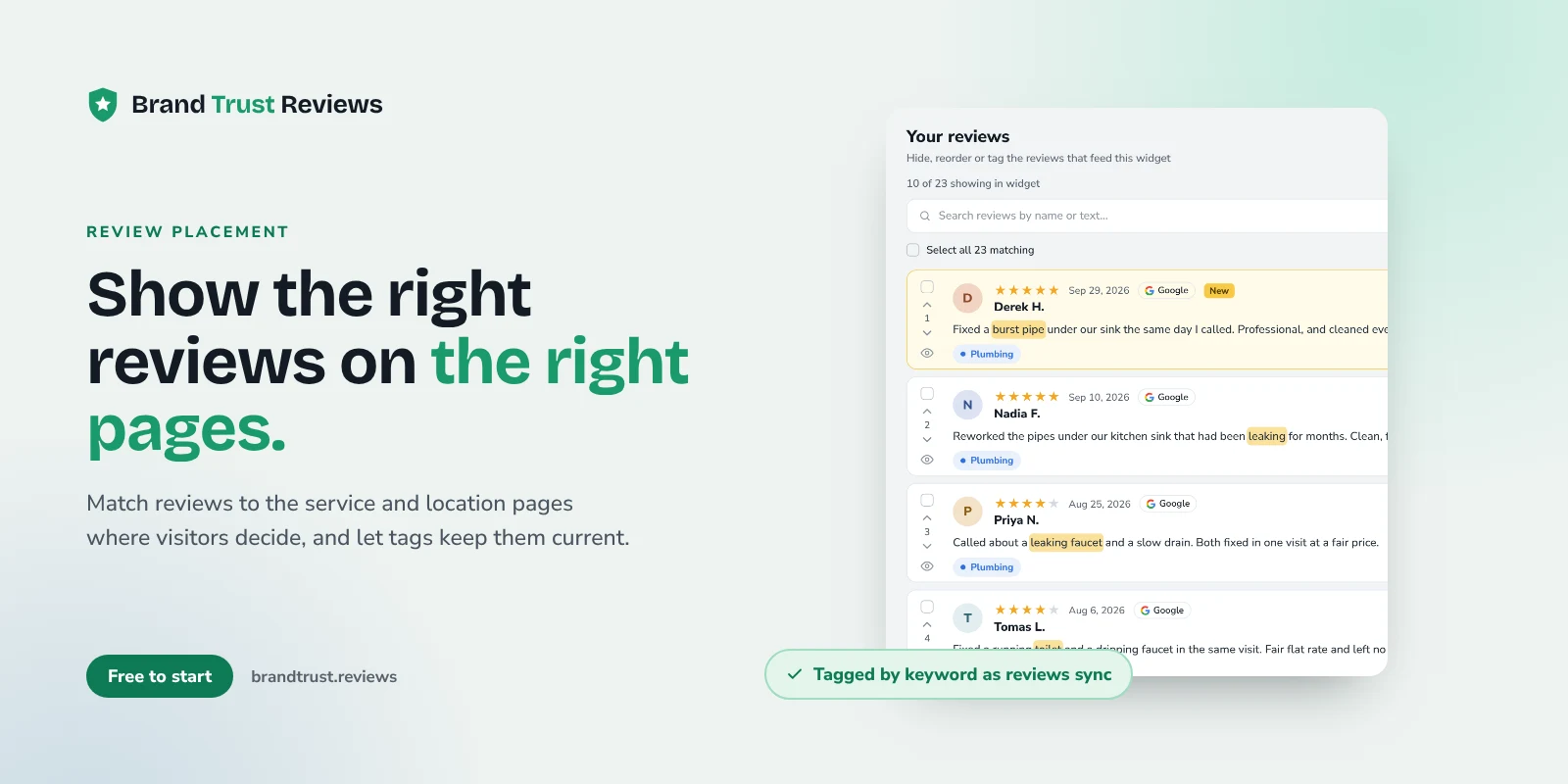
Putting reviews on service pages and location pages, instead of parking them all on one testimonials page, is one of the simplest changes a local business can make to its website. A visitor reading about water heater repair wants to know how you handled someone else's water heater. A visitor on your Mesa page wants to hear from people in Mesa. When the review matches the question they came with, it does real work.
This guide walks through how to map pages to review themes, build a keyword list for each page, and set up a widget so the right reviews keep showing up as new ones come in.
Why a generic testimonials page underperforms
Most small-business sites have a "Reviews" page in the main menu. Think about who lands there: usually someone who already likes you and wants a final reassurance, or someone browsing with no particular job in mind.
The people closer to a decision are somewhere else. They searched for a specific service, clicked into a service page, and are now weighing whether to call. That's the moment a relevant review matters, and it's exactly the page where most sites show nothing.
It comes down to user intent:
- Someone on a drain cleaning page has a clogged drain. A glowing review about a bathroom remodel doesn't answer their question.
- Someone on a city page wants to know you actually serve their area and show up on time there.
- Someone on a product page wants to hear about that product, not your shipping in general.
A testimonials page asks visitors to go find proof. Placing reviews where decisions happen brings the proof to them. Google's guidance on creating helpful, reliable, people-first content frames content as something made primarily for people rather than to game search rankings, and that's the right lens here.
Map each page to a review theme
Before touching any settings, list your key pages and decide what each one should prove. A simple table or spreadsheet works fine.
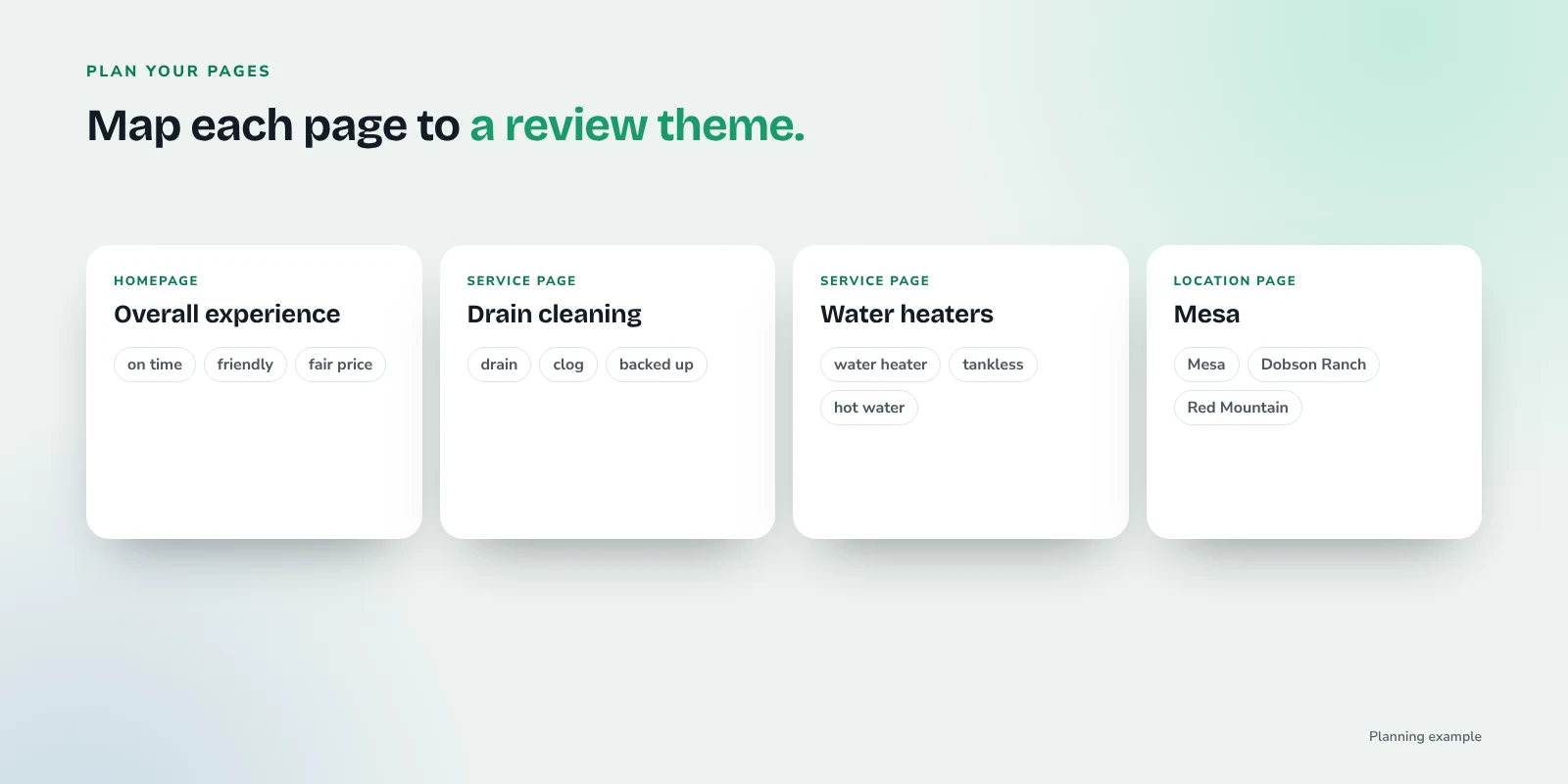
Homepage
Your homepage serves the broadest audience, so it can carry your broadest reviews: overall experience, friendliness, punctuality, fair pricing. A badge layout works well in a hero or header area here because it shows your rating and opens a popup of reviews when clicked.
Each service page
Every service page gets its own theme. A plumbing company might have pages for drain cleaning, water heaters, leak detection, and repiping. Each one should show reviews that mention that work.
Each location page
For a business with several offices or service areas, each location page should show reviews from that location's customers. That usually means reviews from that location's own Google Business Profile, plus any reviews that mention the city or neighborhood.
Product pages
For ecommerce, the theme is the product or product line. If you sell on Etsy, eBay, WooCommerce, or Shopify (through Judge.me), you can pull those product reviews in and filter them to the page they belong on.
Build a keyword list per page
For each page, write down the words customers actually use, not your internal service names. Skim a few dozen existing reviews and note the patterns.
Here's what that might look like for a plumber:
- Drain cleaning: drain, clog, clogged, backed up, snake, hydro jet
- Water heaters: water heater, tankless, hot water, pilot light
- Leak repair: leak, leaking, drip, burst pipe, slab leak
- Phoenix location: Phoenix, Arcadia, Ahwatukee (neighborhoods you serve)
A few tips that save cleanup later:
- Use multi-word phrases when a single word is too broad. "Hot water" is safer than "water."
- Include common variations. Customers write "clog," "clogged," and "unclogged." Cover the forms you see.
- Keep each list short. Three to eight strong keywords usually beat twenty loose ones.
How Smart Tags put reviews on the right page automatically
Doing this by hand gets old fast when new reviews arrive every week across several services and locations. That's what Smart Tags are for.
Smart Tags (listed as keyword auto-tagging on the plans page) are available on the Growth plan; see current plans. Here's how they work:
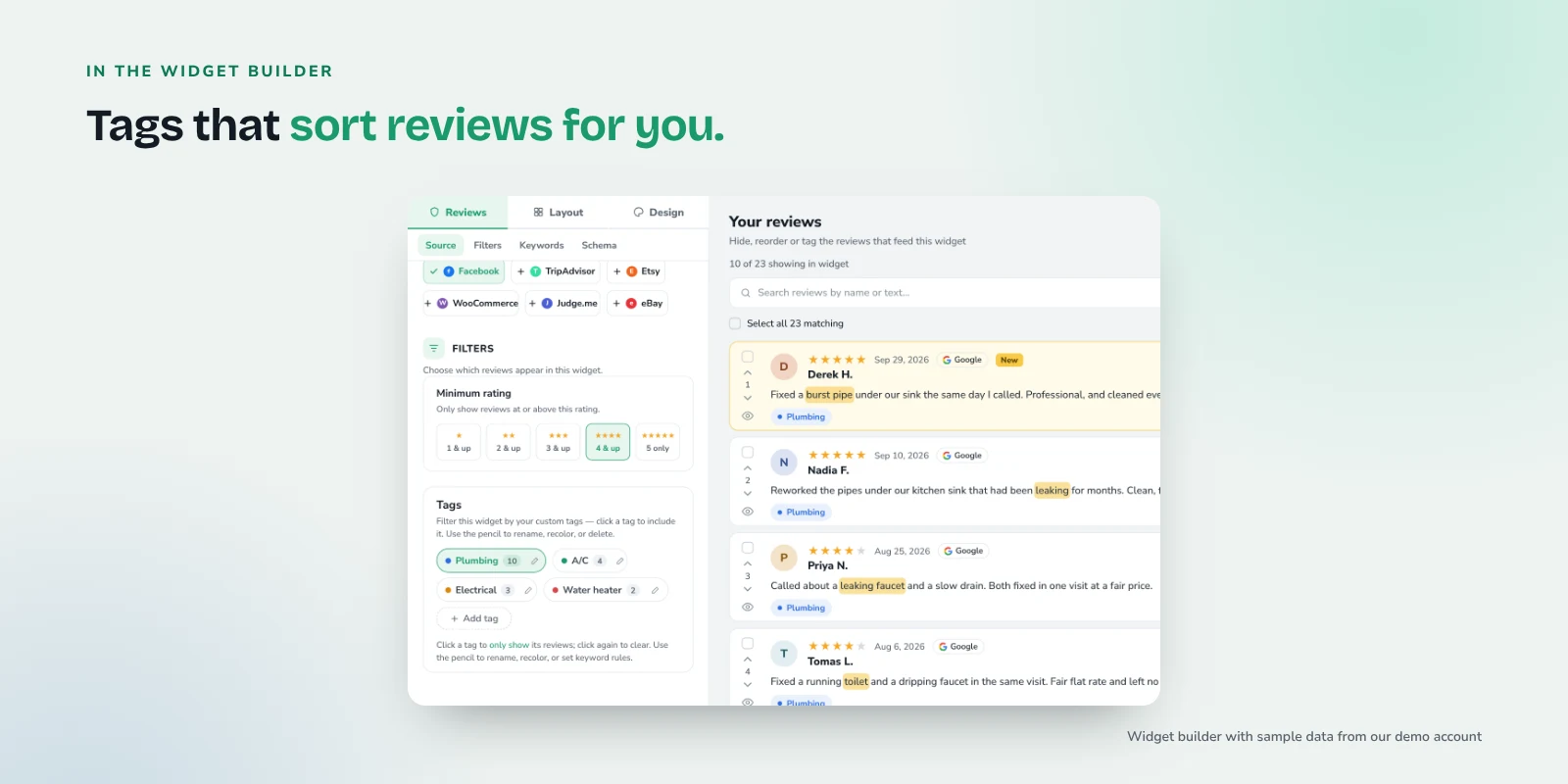
- Create a tag for each theme, such as "Drain cleaning" or "Tempe."
- Give the tag a few keywords from the list you built above.
- New reviews are tagged automatically as they sync. When a review comes in from Google or another connected source and mentions one of those keywords, it gets the matching tag.
- Filter each widget by tag. Your drain cleaning page gets a widget filtered to the "Drain cleaning" tag, your Tempe page gets one filtered to "Tempe," and so on.
After that, the pages maintain themselves. When a customer leaves a Google review next month that says "they cleared our clogged kitchen drain in twenty minutes," it lands on the drain cleaning page without anyone touching the dashboard. The right review, on the right page.
If you're starting with Google, the Google reviews widget page covers connecting your profile, and how to add Google reviews to your website walks through the embed itself.
On a lower plan: manual tagging and featuring
You don't need Smart Tags to get started. Paid plans from Essentials up include basic tags you apply by hand, and every plan lets you filter, order, and feature reviews. On the free plan you get one widget, so a practical approach is to feature the reviews that fit your most important page and order them so the most relevant ones lead. Manual tagging is also a good way to learn which keywords match your reviews before you automate.
Pitfalls to watch for
Keyword matching is simple, so check the results for a few things.
Ambiguous keywords
Some words mean different things in different reviews. An HVAC company that tags "heat" for its heating page will also catch an A/C review that says "they came out during the heat wave." Use phrases like "furnace," "heater," or "no heat" instead, and spot-check a few tagged reviews after setup.
Location names in unrelated contexts
City and street names show up in places you don't expect. "We moved here from Chandler" isn't a Chandler job. For location pages, connecting each location's own Google listing (more on that below) is more reliable than keyword matching alone.
Too few matching reviews
A newer service or smaller location may have just one or two matching reviews, which can look thin. Set a fallback: either broaden the tag with another keyword or two, or let that widget show your general featured reviews until more specific ones come in. Revisit it every few months.
Keep the rating math honest
Filtering by tag changes which reviews are displayed. It should never change the headline numbers. In BrandTrust, the headline rating and the total review count always reflect all of your reviews, not just the tagged or featured ones.
That matters for trust. If your drain cleaning page showed "5.0 from 6 reviews" because it counted just the displayed reviews, while your Google profile shows a different figure across hundreds of reviews, a careful visitor would notice.
It's also worth knowing what reviews on your own pages won't do. Google's review snippet guidelines say that when a business controls the reviews about itself, pages with LocalBusiness or Organization markup aren't eligible for review stars in search. That includes reviews shown through a third-party widget. Schema can still help search engines understand the page, which this guide to review schema markup explains, but the reason to place reviews on service pages is the visitor reading them.
Multi-location businesses
If you have several locations, each with its own Google Business Profile, connect each listing separately. That gives you a clean pool of reviews per location, and you can point each location page at its own reviews instead of relying on city names in the review text.
Then keep pages and sources matched:
- Location page to location listing. The Scottsdale page shows Scottsdale's Google reviews.
- Service plus location, if you have those pages. A "Water heater repair in Scottsdale" page can combine the location's reviews with the water heater tag.
- Homepage or brand page. Combine all locations in one widget (on paid plans) and each review is labeled with its source.
When a location opens, closes, or moves, update its connected listing and its page together so they don't drift apart.
Agencies managing client sites
If you run review widgets for several clients, the tags and styles for each one need to stay separate. A dental client's "Invisalign" tag has no business showing up in a roofing client's dashboard.
The Pro plan adds projects and team workspaces. Each client gets its own project with its own tags, styles, and analytics, and you can add teammates to help manage them. It also makes handoffs easier when a teammate picks up an account.
For WordPress clients, the native plugin renders reviews on the client's own server, and this guide to embedding reviews in WordPress without slowing your site covers the setup.
Frequently asked questions
Should I still have a testimonials page?
You can. It's a reasonable home for a broad collection of reviews, and some visitors look for it. Just don't let it be the one place reviews appear. Service pages and location pages are where relevant reviews help visitors decide.
How many reviews should I show on each service page?
Enough to show a pattern, not so many that the page turns into a wall of text. A handful of relevant reviews is usually plenty, with your overall rating and total count visible. A badge layout lets visitors dig into more if they want.
Do Smart Tags work on reviews I already have?
Smart Tags tag new reviews automatically as they sync. For your existing reviews, check how tagging applies in your dashboard and use manual tags to fill any gaps while you set things up.
Will reviews on my service pages get me stars in Google search?
No. Google doesn't show review stars for a business's own reviews on its own website, including reviews displayed through a widget. Place reviews on service pages because they help the people reading them.
Try it with your own reviews
If you want to try this on one page, the free plan at BrandTrust.reviews gives you one widget with every layout, daily auto-sync, and filtering. No credit card and no trial timer. Pick your most important service page, put a few relevant reviews on it, and see how it feels.